

CRMFeature

A Sales Pipeline CRM You Can See and Move

Every open lead sits in a column for its current stage. Drag a card to move it, read the count and value of each stage at a glance, and keep enquiries, bookings and orders on their own boards.

The short answer

What is the sales pipeline in AliveCRM?

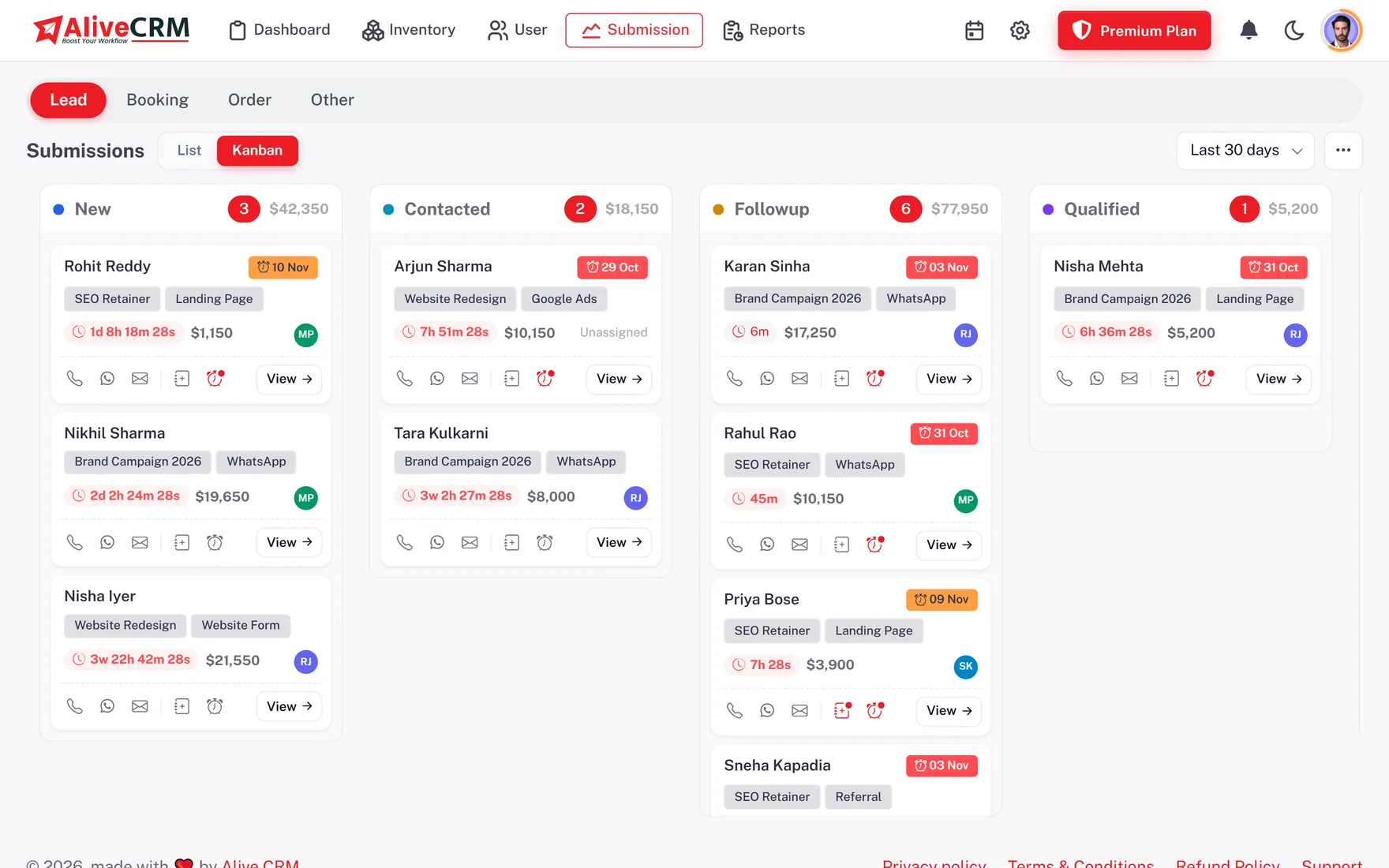
The sales pipeline in AliveCRM is a Kanban board built from your own lead statuses. Each status is a column, each lead is a card, and dragging a card to another column changes its status and records the move. Every column shows how many leads it holds and their total value.

A list is good for finding one lead. A board is good for seeing all of them. Most teams use both: the list for searching and filtering, the board for the weekly question of where deals are stuck and what needs a push.

Signs your team needs a visual pipeline

  • Nobody can say how many leads are waiting on a quotation.
  • Stage updates happen in a chat group, not in the CRM.
  • Managers ask each rep for a status report every Monday.
  • Leads that stopped moving weeks ago are hidden in a long list.
How It Works

How a Lead Moves Across the Board

The board is a view of the same lead records, so every move updates the lead itself.

  1. 01New lead lands
  2. 02Card in first stage
  3. 03Drag to next stage
  4. 04Status logged
  5. 05Won or lost
Kanban

Drag a Card, Change the Stage

Open the Kanban view and your statuses become columns in the order you set. Drag a lead from Contacted to Qualified and AliveCRM saves the new status straight away. The change is written to the lead's status history with who moved it and when, exactly as if the status had been changed on the record itself.

  • Columns follow your status order
  • Drag-and-drop status changes
  • Every move written to status history
See lead status tracking
Drag a Card, Change the Stage
Per Lead Type

Separate Pipelines for Leads, Bookings and Orders

A project enquiry, a service booking and a product order rarely pass through the same stages. AliveCRM keeps a separate board for each submission type, each built from that type's own status list. Your sales enquiries can run New, Contacted, Quotation Sent, Won, while bookings run Requested, Confirmed, Completed.

Set up custom statuses and sources
  • One board per submission type
  • Each board uses its own statuses
  • No forced one-size pipeline
At a Glance

Counts and Values on Every Column

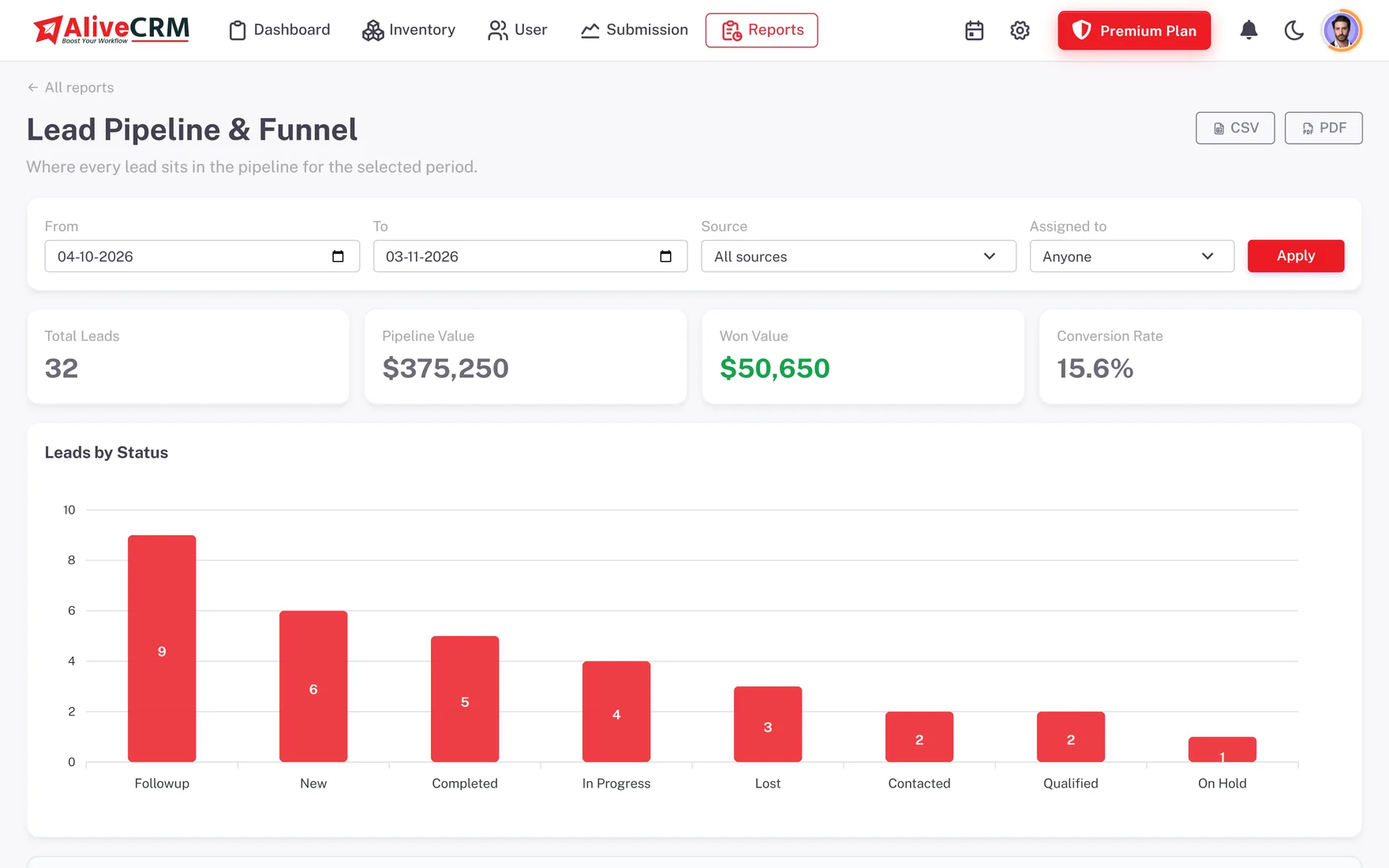
Each column header shows how many leads sit in that stage and the total of their lead values, so you can see where the money is waiting without building a report. Columns load 20 cards at a time with a Show more button, which keeps busy stages quick to scroll.

  • Lead count per stage
  • Total lead value per stage
  • 20 cards per column, then Show more
Explore CRM reports
Counts and Values on Every Column
Focus

Filters, Date Ranges and Permissions

Narrow the board to a date range such as the last 30 days, or switch to the list for detailed filters by assignee, source or status. Roles decide what each person sees: a rep with "self only" access sees a board of their own leads, while a manager sees the whole team's pipeline.

See roles and permissions
  • Date range remembered for the session
  • List view for detailed filters
  • "Self only" boards for reps
Who It Is For

Who Gets the Most From a Visual Pipeline

Sales managers

See where deals pile up and which stages hold the most value, then talk to the team about the leads that stopped moving.

Individual reps

A personal board of assigned leads makes the day's priorities obvious and turns a status update into a single drag.

Businesses with mixed enquiries

Enquiries, bookings and orders each get a board that matches how that work actually progresses, instead of one shared list.

Teams on the move

The Kanban view is also in the AliveCRM Android app, so stages can be updated straight after a customer meeting.

Honest limits

What the Pipeline Does Not Do

The board shows lead values as entered; it does not forecast revenue or weight deals by probability. There is no automation that moves cards on a timer or on an email reply, so stages change when a person moves them. Detailed filters by assignee or source live in the list view rather than on the board.

FAQ

Frequently Asked Questions

Can I customise the stages in my sales pipeline?

Yes. The pipeline columns are your lead statuses, and you manage those per submission type. Add, rename, colour and reorder statuses, choose a default for new leads and mark which statuses count as won or lost. The Kanban board updates to match the moment you save the changes.

Does dragging a card change the lead's status?

Yes. Moving a card to another column saves the new status on the lead immediately. The change is recorded in the lead's status history with the old status, the new status, the person who moved it and the time, so the board and the record never disagree.

Can different teams have different pipelines?

Each submission type has its own board: project leads, service bookings, product orders and general enquiries. Within a type, what each person sees depends on their role. Reps with "self only" access see their own leads, while managers and admins see the full pipeline for the company.

Does the pipeline show deal values?

Yes. Each column shows the number of leads in that stage and the total of their lead values. The figures come from the lead value field on each record, so keeping that field filled in gives you a quick view of how much potential business sits in each stage.

Is the Kanban board available on mobile?

Yes. The AliveCRM Android app, available on Google Play, includes the Kanban view, so you can review stages and move leads while you are away from your desk. An iOS app is coming soon. On the web, the board works in any modern desktop browser.

See Your Pipeline on One Board

Start a 7-day free trial, add a few leads and drag them through your own stages.

Book a demo

See forms, leads and follow-ups set up for your team on a live call. Leave your details and we will reach out to pick a time.